


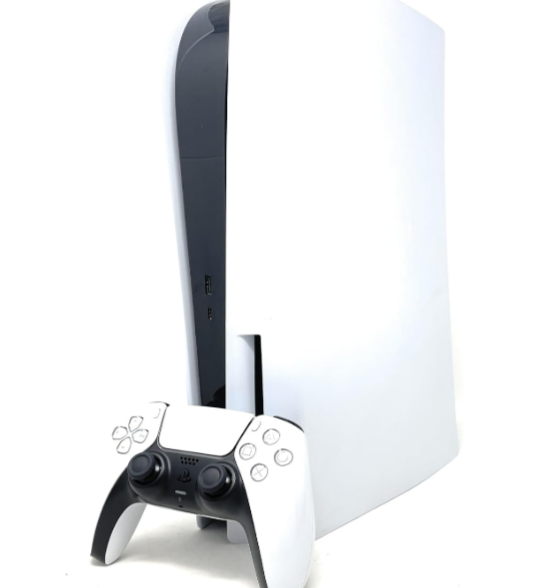
A PS5 that turns on but shows no picture usually has an HDMI problem or a TV input mix-up. A worn cable or a damaged port blocks the signal. A display setting your TV can’t handle can do it too, and sometimes a software glitch is to blame. You hear the fans, you see the light, and the screen stays black. The console itself is often fine. Check the cable and the TV input first, since those fixes take a minute or two. If the port is damaged, no setting will bring the picture back, and that’s when a search for PS5 repair Calgary makes sense.
Key Takeaways
- Swap the HDMI cable and the TV input before you decide the console is broken.
- Test the PS5 on a second TV or monitor to find out which device has the fault.
- Use Safe Mode to reset the video output if a bad resolution setting is blocking the picture.
- Book a repair if the HDMI port looks bent, feels loose, or fails with every cable and screen you try.
What Can Cause a PS5 to Turn On but Show No Picture?
Most black screens trace back to one of five causes.
Damaged or Loose HDMI Cable
Cables wear out. One that got bent behind a TV stand or yanked during a move can lose its signal even though it looks fine on the outside. A plug that sits loose in the socket causes the same trouble. The cable that came in the PS5 box handles 4K, but a cheap replacement might not. If you swapped cables recently, start there.
Damaged PS5 HDMI Port
The HDMI port sits right on the board, and it takes the strain every time someone tugs the cable. Pins bend. Solder joints crack. After that, the console powers on like normal, but no signal leaves the port. HDMI port damage is one possible hardware cause. If the port is physically damaged, replacing the cable won’t fix it.
Incorrect TV Input or Display Settings
It sounds too simple to be the problem, but it happens all the time. Your PS5 might be plugged into HDMI 3 while the TV sits on HDMI 2. Some TVs also fail to switch inputs on their own when the console wakes up. A soundbar or AV receiver between the console and the TV can add another input to check.
TV or Monitor Compatibility Issues
The PS5 can output 4K, HDR, and even 120Hz. An older TV or a budget monitor may not support those modes. If the console was set to a signal your screen can’t read, you get a black screen. The same thing can happen after you move the console to a different display that still has the old settings saved. An HDCP handshake failure can also blank the picture.
Temporary Console or System Software Problems
Software hiccups happen. A system update that didn’t finish, a console that got stuck coming out of rest mode, or a corrupted setting can all leave the fans spinning with nothing on screen. A full power cycle clears many of these.
How Can You Troubleshoot a PS5 With No Picture?
Work through these in order. They go from quickest to most involved.
Check the HDMI Connection
Unplug the HDMI cable from both ends and plug it back in firmly. Use the HDMI OUT port on the back of the PS5. On the TV, pick an HDMI IN port and note its number. Look at the plug and the port for bent pins or dirt. Don’t force anything. If the cable doesn’t slide in smoothly, stop and look closer.
Select the Correct TV Input
Press the Input or Source button on your TV remote and cycle through each HDMI option. Give each one about five seconds, because the PS5 can take a moment to sync. If a soundbar or receiver sits in the chain, plug the console straight into the TV for now. That removes one more thing that could be wrong.
Try Another HDMI Cable or Display
Borrow a cable from another device, or grab the one from your cable box. Then try a different TV, even the small one in the spare room. If the PS5 displays correctly on the second TV, check the first TV’s HDMI input, port, display compatibility and connection settings. If you still get nothing on a new cable and a new screen, the console moves to the top of the suspect list.
Restart the PS5 and Display
Hold the PS5 power button until it beeps and shuts off. Unplug the power cord from the back and leave it for about 30 seconds. Do the same with the TV. Plug everything back in, turn the TV on first, then start the console. A fresh start fixes more blank screens than you’d expect.
Start the PS5 in Safe Mode
Turn the console fully off. Hold the power button and release it after the second beep, about seven seconds in. Connect a controller with a USB cable and press the PS button. You may not see anything, but the console can still be in Safe Mode. Pick Change Video Output to reset the resolution.
If changing the video output doesn’t help, Restore Default Settings can reset system settings without deleting your games or saved data. Avoid choosing Reset PS5 unless you understand that it can erase user data.
When Does a PS5 Need Professional Repair?
If you’ve gone through the steps above, the pattern of what failed usually points to the answer.
Visible HDMI Port Damage
Shine a flashlight into the port. Bent pins, cracked plastic, scorch marks, or a port that looks pushed inward mean physical damage. Don’t try to straighten pins yourself. One slip can make the problem bigger and more expensive to fix.
No Display After Trying Another Cable and TV
A second cable and a second screen should be enough to rule out the cheap causes. If both give you a black screen, the console has the fault. At that point, more cable swapping just wastes time.
HDMI Port Feels Loose
Grab the cable gently and see if the connector wobbles. A port that moves around, lets the cable fall out, or only works when you hold the plug at an angle has probably lost its solder joints. That damage gets worse every time you move the cable.
Safe Mode Does Not Display
You hear two beeps, you follow the Safe Mode steps, and the screen stays dark. If Safe Mode does not appear after you follow the steps correctly, the issue may involve the HDMI connection or internal hardware. Further diagnosis may be needed. Software resets can’t fix a hardware fault, so a repair is the next move.
Repeated Display Problems
Maybe the picture flickers, cuts out during a game, or only comes back after you jiggle the cable. Problems that come and go often point to a port that’s slowly failing. It might work fine today and quit completely next week.
Conclusion
If your PS5 turns on but shows no picture, check the HDMI connection, TV input and display settings first. Test another cable and screen, then try Safe Mode if needed. If the problem persists or the HDMI port is visibly damaged, have the console inspected before attempting a repair yourself. If you’ve reached that point, searching for PS5 repair Calgary is a sensible next step.
Read More: What Causes a Phone to Stop Turning On Without Warning
