


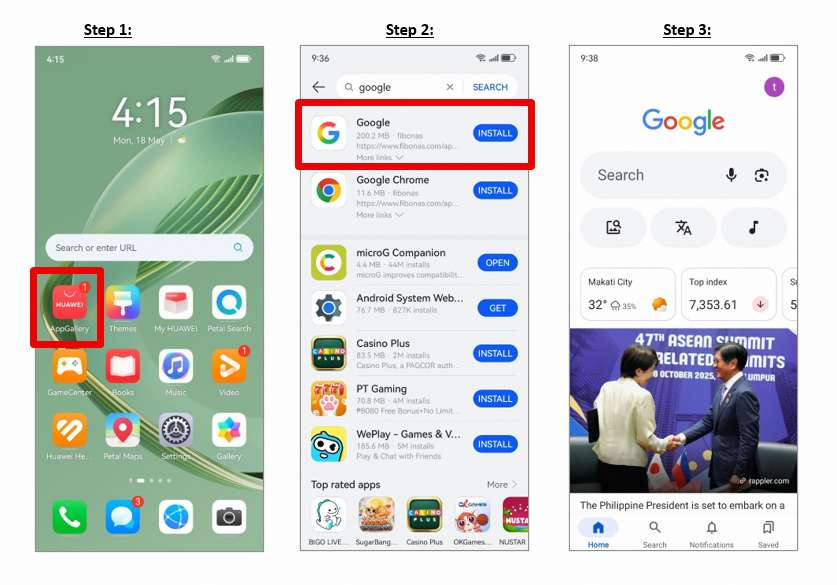
A phone becomes truly useful overseas when it can handle the apps that shape daily life: maps, transport, banking, delivery, email, work tools, and entertainment. For Huawei users, the goal is not to force every service through one store. A better approach is to choose a trusted route for each app, test the functions that matter, and keep a fallback ready.
Start with HUAWEI AppGallery
Open HUAWEI AppGallery and search for the app by its official name. AppGallery is Huawei’s official app distribution platform, and its catalogue can vary by region. Before downloading, check the publisher, app icon, permissions, and update history.
The Huawei Community walkthrough for google in huawei provides a practical starting point for supported Google apps. Depending on the app and device, the available flow may use a direct AppGallery listing or a supported compatibility environment. Follow the on-screen instructions rather than downloading random packages from unfamiliar websites.
Choose the Right Route for Each Service
Not every Google service needs a full app. Gmail, Drive, Docs, YouTube, and Maps can often be opened in a mobile browser when a native app is unavailable. Adding a trusted page to the home screen creates a quick shortcut without using an unofficial APK.
For banking, transport, government, and payment apps, AppGallery or the provider’s verified website should remain the first choice. These services may depend on a regional SIM, account location, identity checks, or specific security components, so test them before travelling.
Test More Than the Login Screen
A successful sign-in does not prove that everything works. For a dependable Google in Huawei setup, test notifications, location access, file uploads, camera permissions, background activity, and payments where relevant. Maps should update your position, email alerts should arrive, and cloud files should open correctly.
If notifications are delayed, review system permissions and battery settings. If an app will not load, switch between Wi-Fi and mobile data, set date and time to automatic, clear the cache, and install available AppGallery or system updates.
Prepare the Phone for Overseas Use
Before a trip, download offline maps and documents, save booking details outside a single app, and confirm that the local SIM can receive verification messages. Public Wi-Fi may require a browser sign-in page and is not ideal for banking or account changes.
Keep enough storage for updates and avoid installing several copies of the same app from different sources. Conflicting packages can create login loops, failed updates, or broken notifications. Use a private network when adding an account or entering sensitive credentials.
Keep the Setup Maintainable
The simplest routine is AppGallery first, the developer’s official website second, and a secure web version when no reliable native app is available. Use compatibility tools only when they are necessary and supported.
For the Huawei-specific installation sequence, review the google in huawei page and confirm that its steps match your device, software version, and region. With trusted sources and a few practical checks, Google services and overseas apps can fit into daily use without turning the phone into a constant troubleshooting project.
